ACES OCIO support & workflow in Affinity Photo by Serif
In addition to 32-bit editing support, Affinity Photo also implements OpenColorIO; a color management system that provides a full color managed workflow. It is predominantly used for motion picture production but can be used for any situation where accurate end-to-end color management is required.
OpenColorIO setup instruction:
https://affinity.help/photo/en-US.lproj/index.html?page=pages/HDR/ocio.html?title=Using%20OpenColorIO
Download and extract your chosen OpenColorIO configuration to a folder.
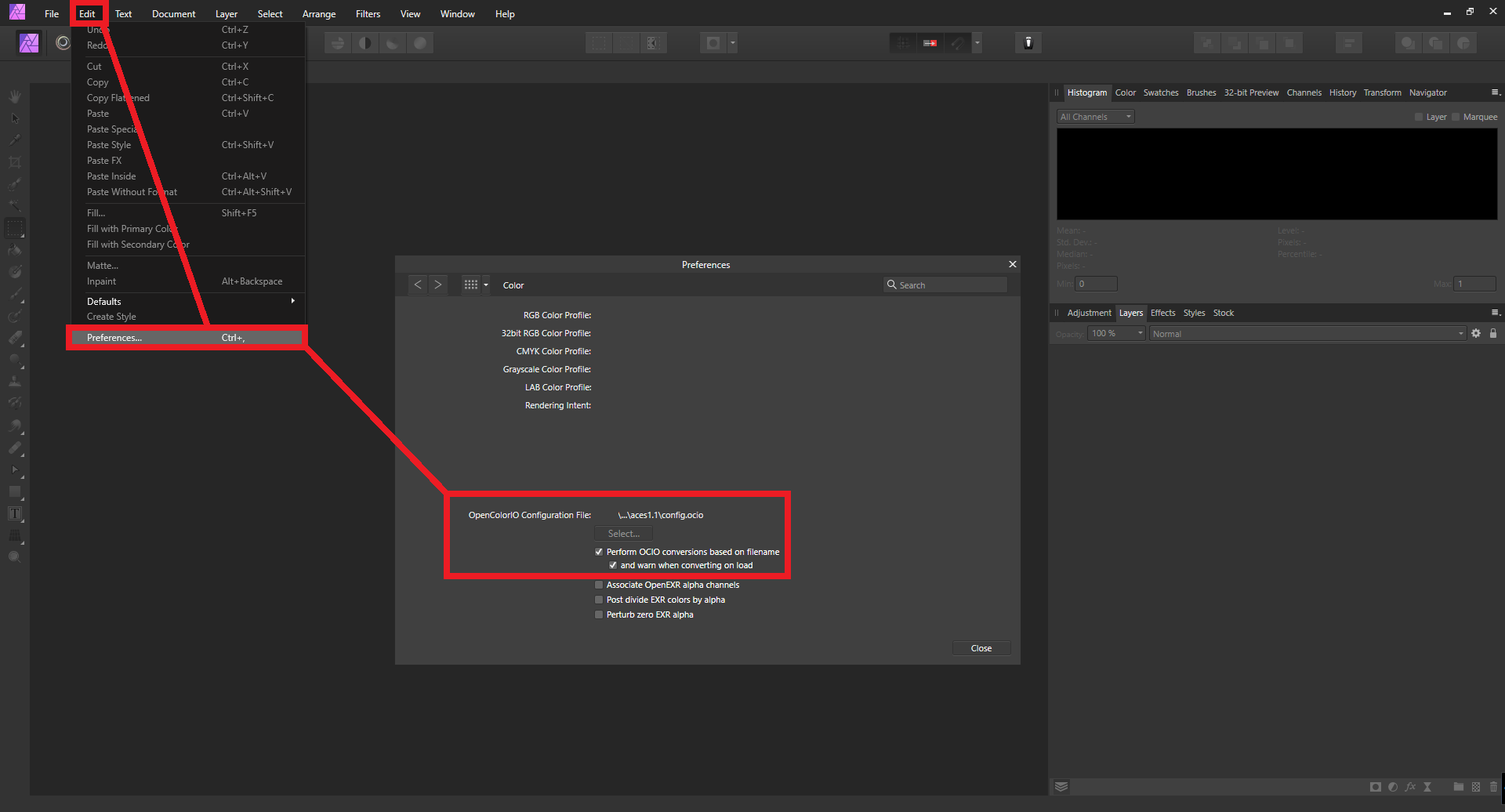
MacOS: From the Affinity Photo menu, select Preferences.
Windows: From the Edit menu, select Preferences.
On the Color tab, under OpenColorIO Configuration File, choose Select and navigate to the extracted directory. Choose the .ocio configuration file.
MacOS: Under OpenColorIO Search Folder, click Select and choose the extracted directory (it should already be the current highlighted directory from when the .ocio configuration file was selected).
You will be prompted to restart the app, which is necessary for the OpenColorIO settings to take effect.
 Known issue
Affinity seems to bake the ICC at export, especially when exporting 8bit JPG files. This is a dramatic issue and making the export to JPG impossible as it results in an unwanted “double sRGB (transfer function)” effect.
Some useful links:
•
ACES > ICC sRGB Kit for Affinity Photo
•
https://forum.affinity.serif.com/index.php?/topic/59321-is-32bits-linear-workflow-well-implemented-in-ap
To convert log footage from cameras to ACEScg in Affinity Photo, follow these steps:
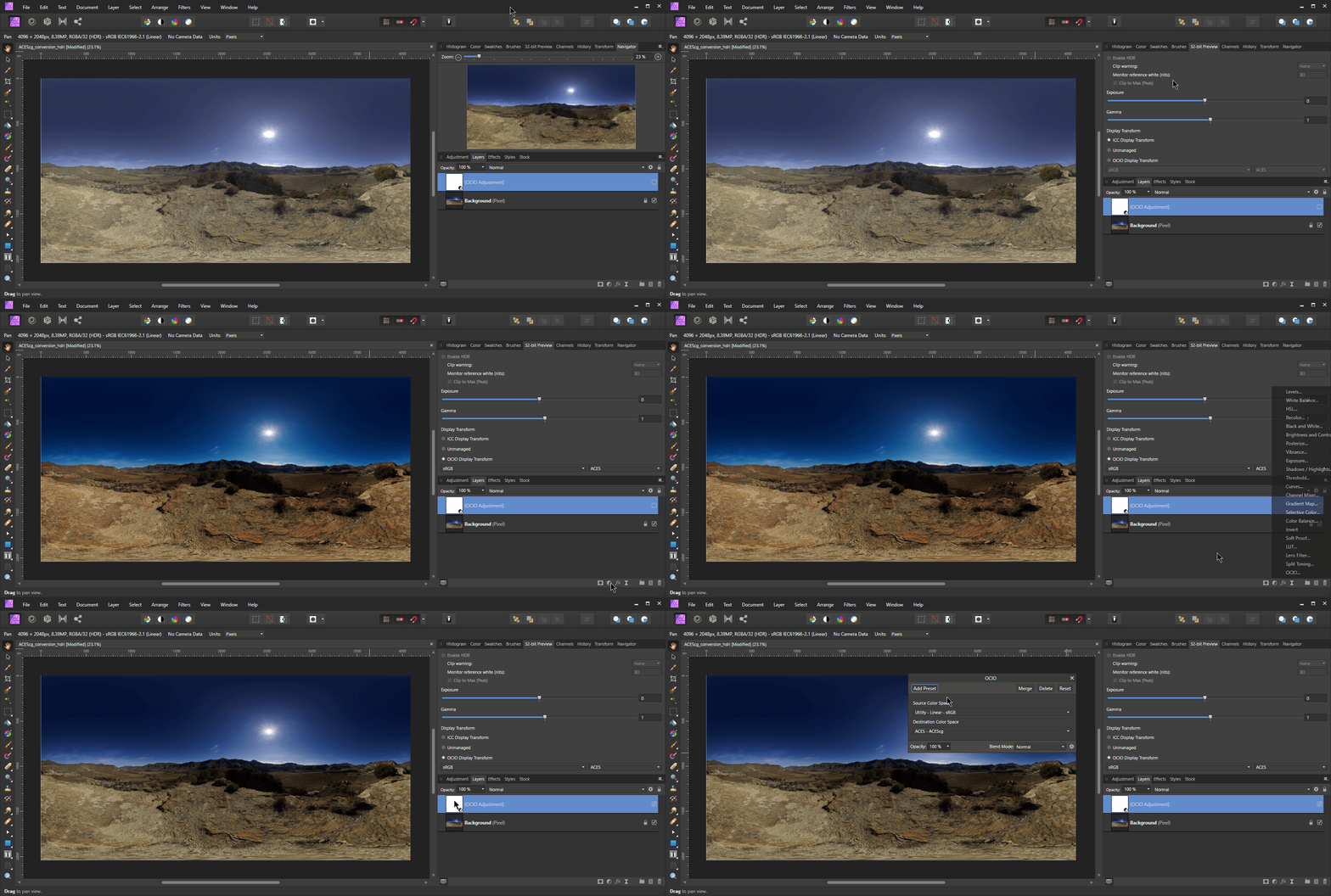
Add an OCIO layer and convert from role_scene_linear to Utility - sRGB - Texture. Now the image looks exactly like your log footage.
Now add a second OCIO layer above the first OCIO and convert from your log format (slog3 in my case) to ACEScg and we’re now in ACEScg linear space.
Set your Preview to OCIO Displace Transform and set your wanted output (sRGB in my case)
thanks for sharing this. i am new to ACES color management. i had some problem understand how to correctly using this,
so basically i use ACEScg in blender and render still with open EXR format.
then, what should i do with my color setting in affinity to make sure i edit in ACES and but viewing in srgb?
i tried copy your setting, but the color does not match what i get from the render exr.
any though about this?
Hi Lei, welcome on aces-central.
• You indeed export a
linear-ACEScg EXR
(half 16 or full 32bit float) from Blender or any other DCC/renderer.
• Add an
OCIO layer
. You can find it at the same place where you have HSL, white balance, etc.
—↳ Set the “
source color space
” to “
ACEScg
” (applicable to other compositing software, in this case, Affinity, although I would not define it as a compositing software like Nuke or Fusion).
—↳ Set the “
Destination Color Space
” to “
output_sRGB
”.
Side note: I do not export 8bit integer images with Affinity Photo (only used it to export as EXR) and I do not use it much in my pipeline as it is not available on Linux. That said, from my past experience with it, I was not able to export an 8bit integer image file like JPG, hassle-free. The issue that I remember is that it exports with the native ICC profile baked on top of the OCIO ODT (output_sRGB). There are perhaps workarounds online (and some forum posts about it) but I did not bother myself as it is not part of my pipeline and I expect Serif to fix it in the future, or rather, ASAP as it is quite important.
I hope it helps.
Best.
did you file the double transform bug when exporting to serif?
I also had once one issue, they were quite fast in responding.
Otherwise I could write an bug report in the forum from serif.
Daniel
Hello Daniel,
I do not know if this post qualify as a report but I remember seeing Affinity Photo users mentioning the issue here:
https://forum.affinity.serif.com/index.php?/topic/59321-is-32bits-linear-workflow-well-implemented-in-ap